

Shoptet Product Import: From a Thin Sample File to a Complete Product
 Marek KlenoticCOO of Lasso
Published
I took Shoptet's own two-product sample feed and looked at it like a file from a supplier. I imported it once as it is and once after processing it in Lasso, to show how Lasso can fit into your workflow and get you better product data in your store.

I took Shoptet's own sample product feed, two products long, and looked at it the way I would look at a file from a supplier. Then I ran it through two workflows: first I imported it as it is, then I processed it in Lasso before importing it into Shoptet. I hope this helps you picture how Lasso could fit into your own workflow and get you the best possible product data in your store. If you are still wrestling with messy supplier files in general, start with our guide to supplier product data.
Why bother with two products?
On 20 November 2026, Shoptet's homepage listed 49,248 shops. Each has a Products → Import option, but importing a file is the easy part. What takes time is preparing it in exactly the format Shoptet expects.
Starting with just two products also follows a sensible import workflow: test the setup on a small sample, check the results, and only then import the rest in bulk. With two products, I can inspect every cell by hand. If the rules cause problems here, they'll cause even more trouble with 2,000.
The cycle in one picture
Big Shoptet catalog jobs, like filling parameters for hundreds of products or adding a new supplier range, usually follow the same loop: export, fix, import. You take a file out of Shoptet (or get one from a supplier), restructure and fill it, then load it back through the import. In this article we use that file-based approach, though products can also flow in and out of Shoptet automatically through its API. Either way, the part that takes the real work is the middle one: getting the products ready and in good shape. That matters, because Shoptet's import is a bit like airport security. It does not care what you pack (almost), only that it is packed their way.
Shoptet accepts XLSX, CSV or XML. Its guide is written for XLSX, so that is what I built. CSV has to be UTF-8 or Windows-1250, the old XLS format is not supported, and cells with formulas are not imported.
If you import the supplier file as it is
The input was Shoptet's sample supplier import, VariantItem.xml, linked from the XML validation page. It holds two products: a pair of shoes written once without variants, and the same shoes written again as a product with one colour variant. I counted 123 distinct XML tags in it, and the file validates against Shoptet's published "complete" Relax NG schema (I checked it with lxml).
The sample is the kind of file you get from a supplier: an XML file with 123 distinct tags. Many of those tags are just structure, boxes around other tags (SHOPITEM, IMAGES, STOCK, and so on). The rest is real product data, and almost all of it has a column in Shoptet's XLSX import. Shoptet can create a product from a short file with the required columns, such as code, pairCode and name. A complete product carries much more: descriptions, images, categories, parameters, prices, stock, and the other fields the shop and the comparison sites use. If you convert every value the sample already has, the import file has 93 filled-in columns. That looks like plenty.
Unfortunately the problem is somewhere else. Most of those values are technical or commercial: prices, stock, dimensions, flags. What a shopper actually reads on the product page is thin: the description is two words, the images are placeholders, there are three parameters, and the colour contradicts itself. This is the real situation in many shops: you have a lot of data from the supplier, but the part the shopper cares about is in poor shape.
Here is what the product page gets if you import the file as it is:
| What a product page needs | In the sample |
|---|---|
| Name | Boty Nike AirMax |
| Short description | Stylové boty |
| Description | Stylové boty (the same two words) |
| Images | Three URLs on test.com, with the alt text "picture description" |
| Categories | Boty > Nike (default), Boty > Airmax |
| Text parameters | Three: Šití, Podrážka, Tkaničky |
| Colour | The filter says fialová, the variant says červená, and the names differ only by case (barva vs Barva) |
| SEO title and meta description | title, description |
The name and the categories are usable. Almost everything a shopper reads is a placeholder. The long description does not describe the shoes. The images will not load in a real shop. The colour does not agree with itself. And several parameters a shoe page usually needs, such as material or who the shoes are for, are not there at all. If you import this file as it is, that is the product page you get.
The prices, stock, warranty and identifiers are already in the file, and they should stay. A complete product still needs real descriptions, working images, consistent parameters, and the other fields the shop and the comparison sites use.
In Shoptet's import file those texts and parameters have to be packed their way: textProperty as Name;Value with no spaces around the semicolon, categories with >, a defaultCategory so the product is actually shown, and productVisibility set to visible, otherwise a new product is created as hidden. Variants share a pairCode and sit in rows under each other. But all of that is not that hard to do right, if you are not doing it manually. The hard part still remains as having something worth packing.
The sample was never meant to be imported as two products side by side. It shows the same shoes twice: once without variants and once with a colour variant. Both rows use the same code, DS76065630, and the same EAN, 1310121350001. That is fine in a schema example. It is not fine in an import. Shoptet's guide says a product whose code or EAN belongs to another product is skipped. One of the two rows would never arrive, and in the shop that would show up only as a line in the Log.
In a real supplier file the same kind of clash is common: two rows sharing an EAN, a code reused on the wrong product, or a parent EAN copied onto every variant. Feed and PIM guides treat this as ordinary dirty catalog data (see, for example, WisePIM on duplicate SKUs and shared EANs). I look at uniqueness first, before I worry about formatting.
Rules a two-product file never hits (Disclaimer)
A bigger file runs into rules my sample was too small to trigger. Four are worth knowing before the first real import:
- Empty rows end the import. Shoptet reads empty rows in the middle of a file as the end of the import, so everything below them is ignored.
- Errors leave a half-done catalog. The import runs in batches of 100 products and saves each one. If an error stops it, the saved batches stay and the rest is not imported.
- Language columns only update. Columns such as
name:encannot create new products, only change existing ones. - XML has two dialects. Shoptet imports XML in its own Relax NG format or in the Heureka format, and the Heureka one is for a one-time import only. For a file you prepare yourself, XLSX is simpler to open, check and fix.
The same cycle in Lasso
Now for the fun part. Lasso is where you can fill the supplier file and make a complete product record. The six steps below are from the Lasso setup guide. A guide I made to help you get started with Lasso in no time. The rules from Shoptet's help go into the schema and prompts once, and you reuse them for the next file.
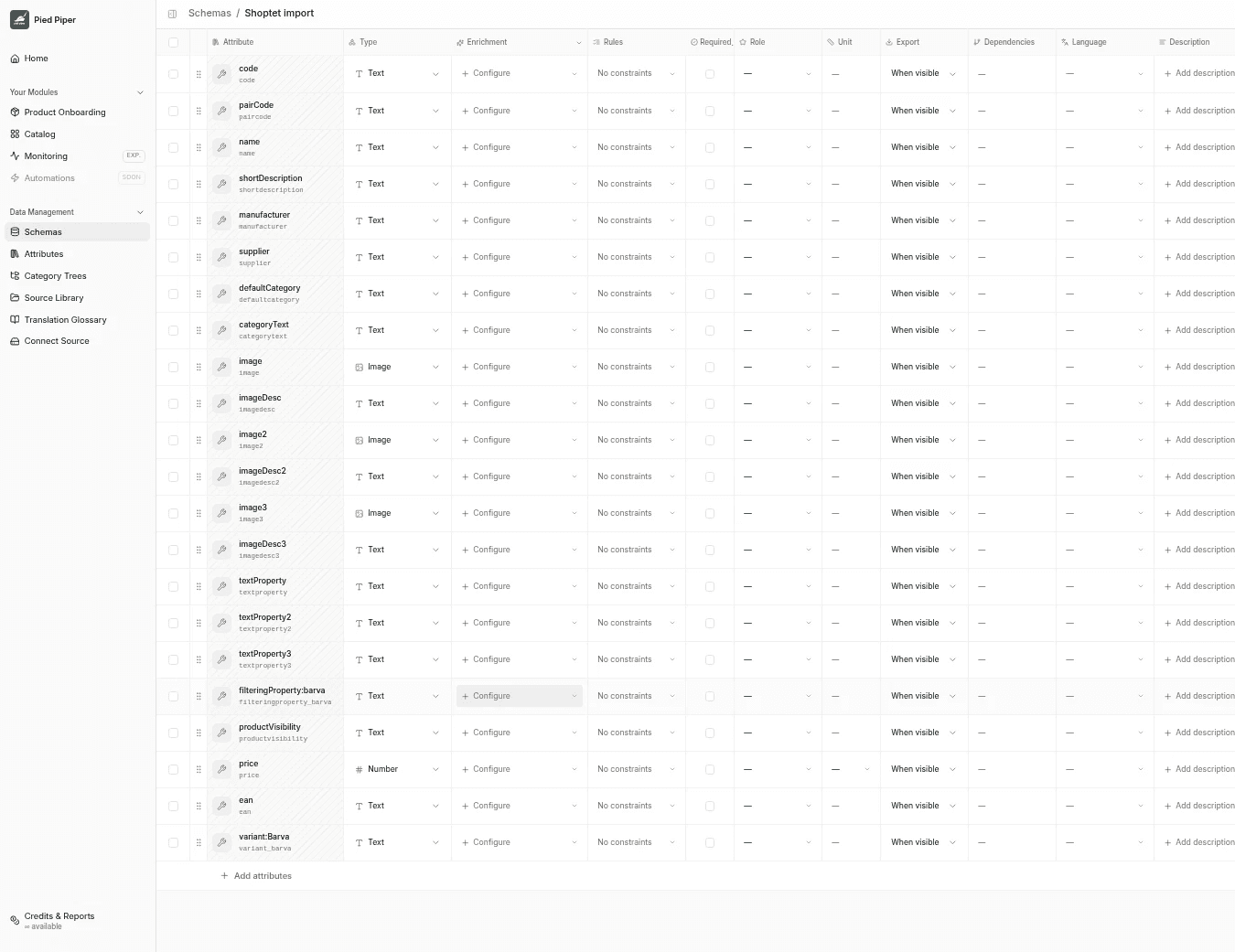
1. Start from a Shoptet export, and create a schema in Lasso. In Shoptet, open Products → Export, create your own export type, tick the columns you use and export XLSX. Shoptet itself uses this export as the template for future imports. In Lasso, start your schema from your shop's import file, so every field matches a Shoptet column. The screenshot is a schema in the demo workspace, named "Shoptet import", with the fields from a first import file. You can add more fields as you go, so the schema holds the descriptions, parameters and other data a complete product needs. Notes that should not reach Shoptet go into helper columns, which stay out of the export.
2. Upload the supplier file. Lasso takes XLS, XLSX, XLSM, CSV, XML, DOCX, PPTX, HTML, TXT, images and PDF (beta), or pasted text. Add the supplier's official website and sitemaps to the Source Library, run the extraction, and check product counts, identifiers and mapped columns. With variants, count the variant rows too, because Shoptet wants one row per variant.
3. Fill the gaps. Write a prompt per column and type / to reference other columns. Give the AI identifiers such as EAN or model number and limit web search to the supplier's official domain. Test on 5 rows, then apply to the rest. Missing attributes can be generated or looked up on the supplier's website, and the AI Trace shows where every value came from. This is also where you ask for Shoptet's formats directly: Name;Value for parameters, > for category paths, one fixed spelling for every parameter name (hello, barva).
4. Get images ready. Set image rules (aspect ratio, format, background, size), let checks flag what breaks them, and use Smart Fix to pad, crop or convert. Alt text maps to Shoptet's imageDesc. Before importing, open a few links from your export, since Shoptet needs an absolute URL for every image.
5. Review with the team. Roles are Owner, Admin, Content editor, Catalog manager, Developer or Custom. Reviewers check codes, attributes, texts and images and lock finished rows with Mark ready. Each product has its own thread for discussing changes, and History restores earlier versions.
6. Export and import. Export XLSX or CSV from Lasso. In Shoptet, open Products → Import and keep the first setting, "Neměnit produkty a varianty, které nejsou obsaženy v importovaném souboru". The third setting deletes everything not in the file, which is a bad way to learn about settings. Then read the Log. If the pilot imports cleanly, run the rest of the supplier's catalog the same way and reuse the schema and prompts that worked.
What came out
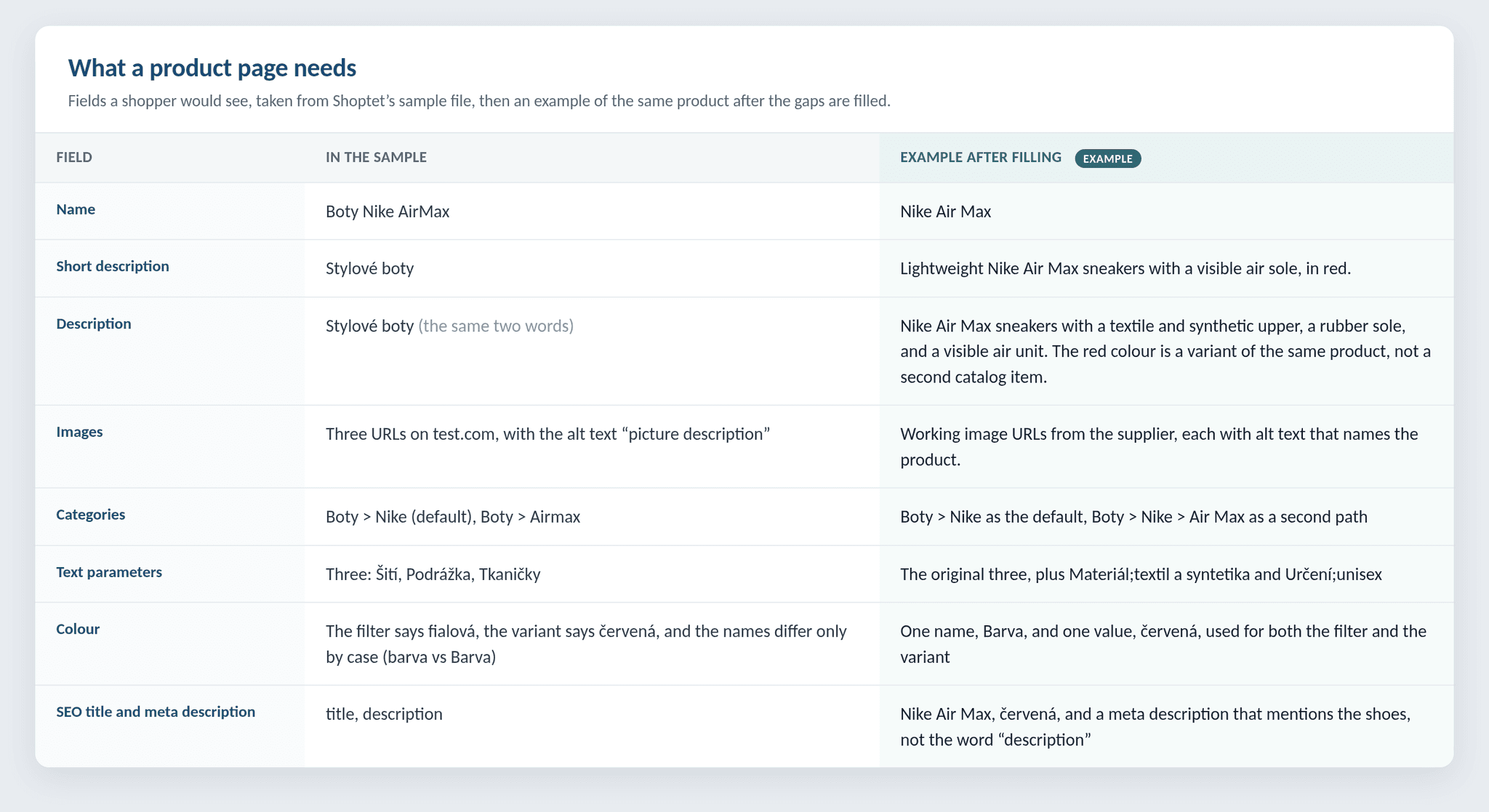
Here is an example of the same shoes after the gaps are filled in Lasso. The values below are an example, so you can see the shape of a complete record.
| Field | Example of a filled value |
|---|---|
| Name | Nike Air Max |
| Short description | Lightweight Nike Air Max sneakers with a visible air sole, in red. |
| Description | Nike Air Max sneakers with a textile and synthetic upper, a rubber sole, and a visible air unit. The red colour is a variant of the same product, not a second catalog item. (Example text.) |
| Images | Working image URLs from the supplier, each with alt text that names the product. (Example.) |
| Categories | Boty > Nike as the default, Boty > Nike > Air Max as a second path |
| Text parameters | The original three, plus, as an example, Materiál;textil a syntetika and Určení;unisex |
| Colour | One name, Barva, and one value, červená, used for both the filter and the variant |
| SEO title and meta description | Nike Air Max, červená, and a meta description that mentions the shoes, not the word "description" |
Bulk edits run the same loop
For changes the admin's bulk edits cannot make, Shoptet recommends export, edit, import. It calls this a safe way to make bulk changes and suggests keeping an unedited copy of the export as a backup. With Lasso in the middle, export one category, fill the missing parameters and descriptions, and export only code, pairCode and the changed columns. An empty cell means "do not change", unless you switch on empty values deleting data.
Why marketplaces and comparison sites care about all this
The parameters you import are the parameters comparison sites see. Shoptet builds feeds for Heureka, Zboží.cz and Google Shopping from your shop data. In the Heureka feed, descriptive parameters, filter parameters and variants all go into PARAM, and filled parameters raise the chance shoppers find your product. The Zboží.cz feed settings let you include descriptive and filter parameters too. One more limit: Shoptet allows 64-character codes, Heureka only 36. The sample's 10-character code was fine there.
Closing words
If you want to try the loop on your own export, Lasso has a free plan with no card needed, and the setup guide follows the same six steps. You can see pricing or talk to us if you want help with a first pilot. You can even try to run a real supplier PDF through it, which should be less polite than Shoptet's sample.